A little guidance.
A lot more order.
From your first folder to a cleaner media library. A practical guide to TAGDAD 1.0.
Search by feature, format or task. All sections are shown.
01. Start with a folder.
- Choose Open Folder… in the top bar, or Add Files… for individual files.
- Select the folders or files you want TAGDAD to access. The App Store edition uses macOS App Sandbox, so choosing a location also grants access to it.
- Pick a workspace from the top bar. Media Library Tools handles movie and TV naming; Tag Editor works with music metadata.
- Review the loaded list and select the items you want to work on. Check the operation’s review or confirmation before applying.
Use more than one folder
The folder picker accepts multiple folders. In the sidebar, use Select multiple folders to show checkboxes, or Command-click folders to add or remove them from the selection. The arrows expand and collapse folders. Include subfolders controls recursive loading where available.
Start with copies of a few files while learning the app. A preview is useful; it is not a replacement for a backup.
02. Media Library Tools / Plex.
Use this workspace to prepare cleaner names for local movies and TV episodes, including libraries organised for Plex. TAGDAD reads naming patterns from your filenames; it does not connect to a Plex server or retrieve titles, posters or metadata online.
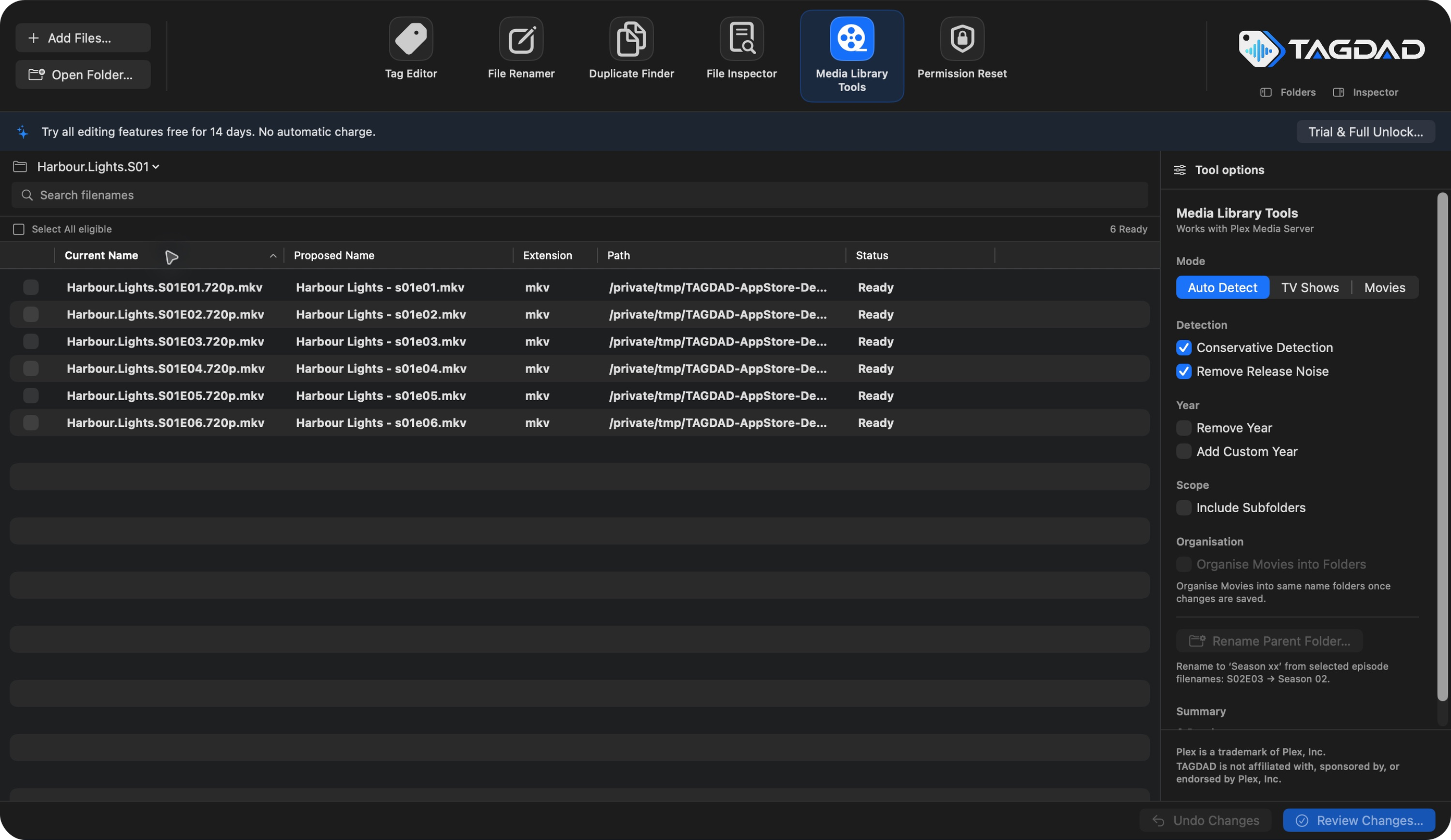
Rename TV episodes
- Open a folder containing episodes and select Media Library Tools.
- Choose TV Shows or leave Auto Detect enabled.
- Start with Conservative Detection on. Recognisable patterns such as S01E03 give TAGDAD a season and episode to work with.
- Use Remove Release Noise to strip recognised resolution, codec and release tokens from proposed names.
- Check the episode rows to include, inspect Proposed Name, then choose Review Changes. Apply only when the names and scope are right.
Harbour.Lights.S01E03.1080p.WEB-DL.mkvIllustrative proposed filename ↓Harbour Lights - S01E03.mkvConservative Detection off also recognises some compact episode codes, such as Show.101.mkv. Those patterns can be ambiguous, so check the detected season and episode carefully. TAGDAD does not add episode names from an online database.
Rename movies and organise folders
- Choose Movies or use Auto Detect with recognisable movie filenames.
- Check the extracted title and year. Remove Year omits it; Add Custom Year lets you supply one.
- Select eligible movie rows. Enable Organise Movies into Folders when you want folders matching the movie names.
- Review all proposed file and folder changes before applying.
After changing a Plex library
TAGDAD changes files on disk. If another app manages or scans that folder, let any active file operations finish first. Review the resulting library in Plex and use its normal library-scan controls if needed. TAGDAD does not initiate a Plex scan.
Plex is a trademark of Plex, Inc. TAGDAD is an independent app and is not affiliated with, sponsored by or endorsed by Plex, Inc.
03. Rename a season’s parent folder.
Organisation → Rename Parent Folder… uses the season in selected episode filenames to propose a parent-folder name such as Season 02.
- Load the episode files in Media Library Tools and check the episode rows that establish the season.
- Apply or discard any pending file edits first. Folder renaming is a separate operation.
- Choose Rename Parent Folder…. Read the current and proposed folder paths in the confirmation.
- If macOS asks, select the containing parent directory to grant the necessary access.
- Confirm only when every folder and season is correct.
Selected episode: Harbour.Lights.S02E03.mkvProposed parent-folder name ↓Season 02The whole parent folder is renamed, including items inside it that you did not select. Their own filenames and contents are unchanged by this folder-only operation. If the selection does not establish a consistent season, resolve it before proceeding.
04. Music tags and artwork.
Choose Tag Editor, load audio files and select a track to see its metadata and artwork. Select several tracks to work with the selection together. Edit only the fields you intend to change, then use Review Changes.
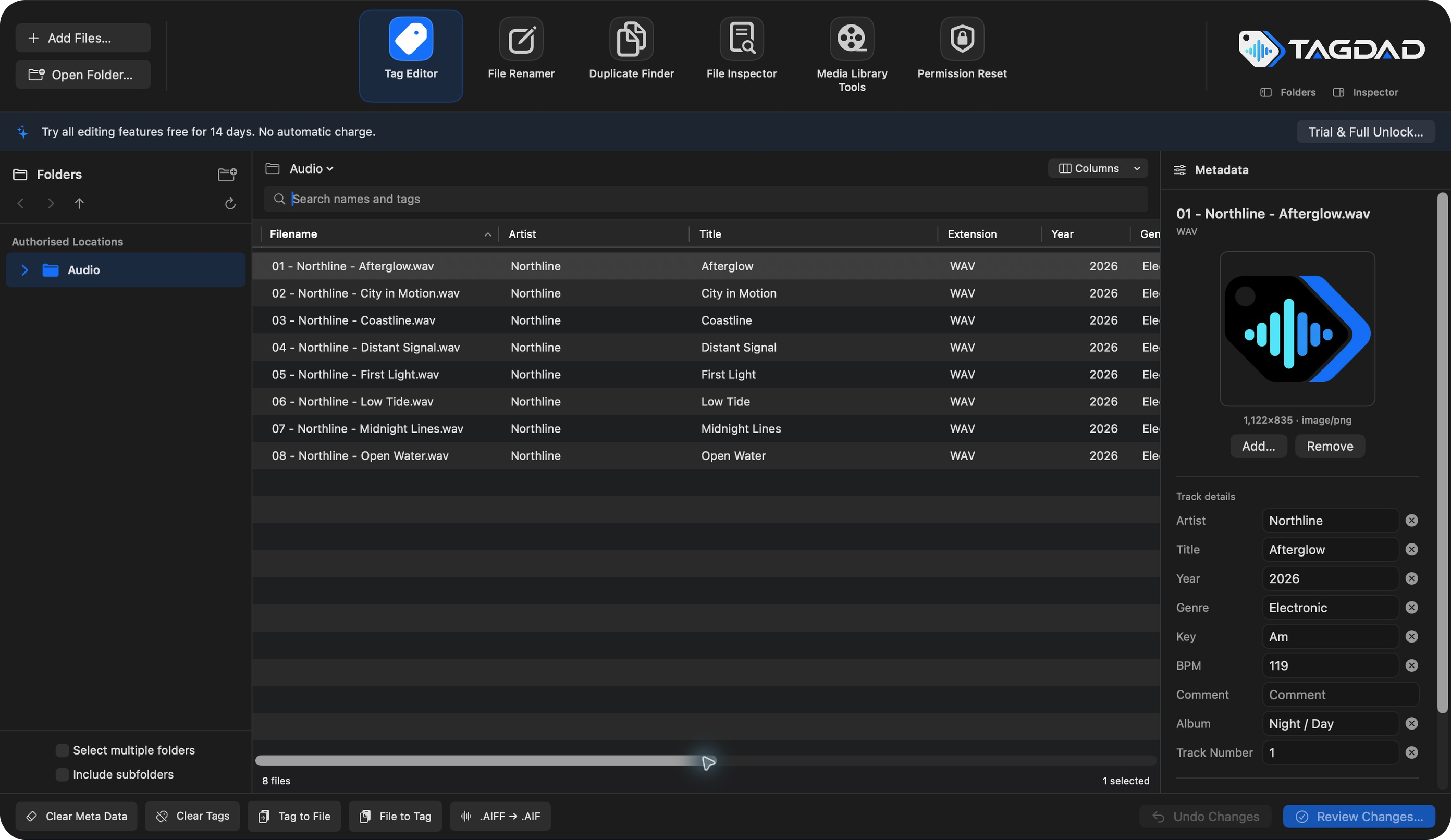
Tags, filenames and artwork
- Tag to File… builds proposed filenames from metadata.
- File to Tag… extracts metadata using a filename pattern.
- Use the artwork controls in the inspector to manage supported embedded artwork.
- Clear Tags and Clear Meta Data are different operations. Read their confirmation and selected-file scope before continuing.
Supported formats
| Format | What to expect |
|---|---|
| MP3, WAV, AIFF | Common and extended music tags, artwork and supported rating fields. |
| FLAC, Ogg Vorbis, Opus | Common and extended music tags and artwork. Ratings are not writable through TAGDAD. |
| M4A / MP4 audio | Common and extended tags and artwork. BPM is stored as a whole number. |
| Raw AAC | Best-effort support; duration and bitrate may be unavailable or approximate. Use an M4A container for more consistent metadata support. |
Available fields depend on the file’s format. Audio properties such as sample rate and channels are read-only. Musical-key text is preserved as entered. Some applications use different conventions for fields such as grouping or key; check compatibility with your other library tools.
05. File Renamer.
Build a naming rule while keeping Current Name, Proposed Name and status visible together. The rule controls include find and replace, regular expressions, prefixes, suffixes, case changes and sequential numbering.
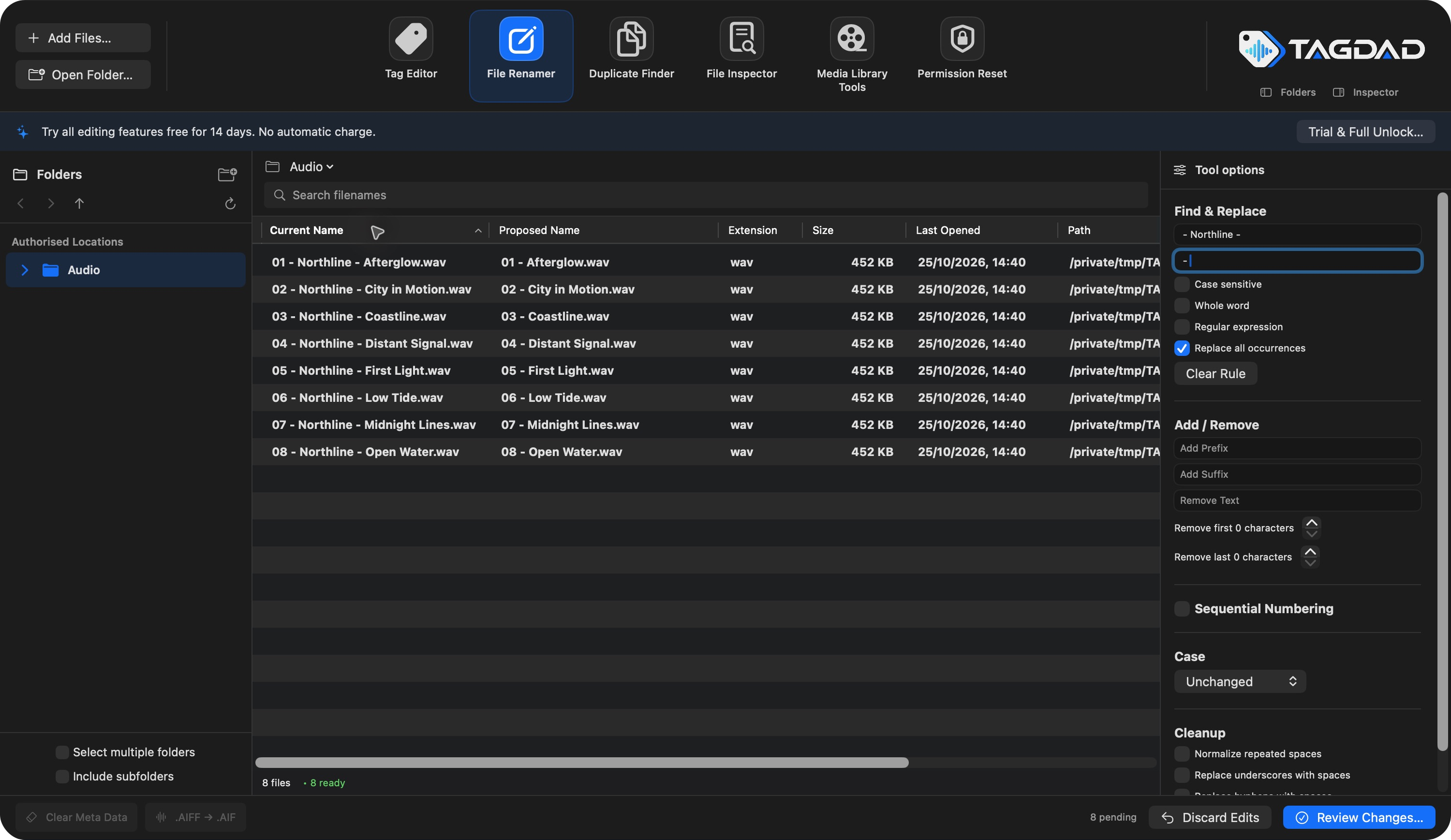
- Open the files or folders you want to rename.
- Select File Renamer and configure your rule.
- Inspect the full proposed names, extensions and folder paths. Resolve conflicts before applying.
- Choose Review Changes and confirm the exact set of changes.
Right-click table headers for available columns. Removing a row from the workspace does not delete its source file. Use small selections when testing a new regular expression.
06. Duplicate Finder.
Load the locations you want to compare, choose a matching mode and start a scan. Results are grouped for inspection.
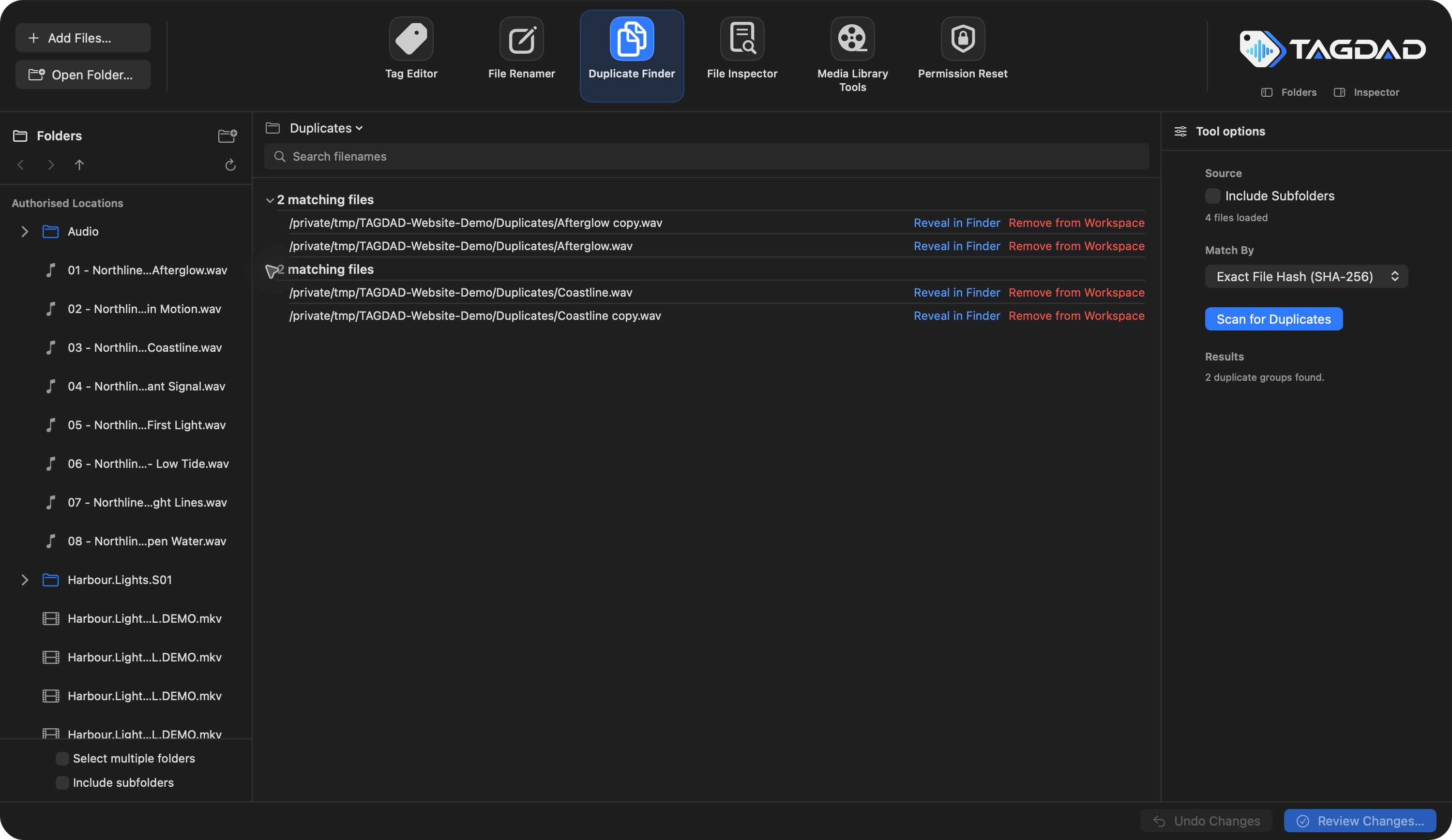
- Filename: matches names without requiring the contents to be identical.
- File Size + Filename: narrows matching names using file size.
- Exact File Hash (SHA-256): compares the complete file contents. Differently tagged copies of the same audio can have different hashes.
Reveal results in Finder to investigate them. TAGDAD never deletes duplicate source files. Removing an entry from the workspace only removes it from that view.
07. File Inspector.
Select a file to inspect its details and supported audio, image or video metadata. The information available depends on the file’s format, contents and what macOS exposes.
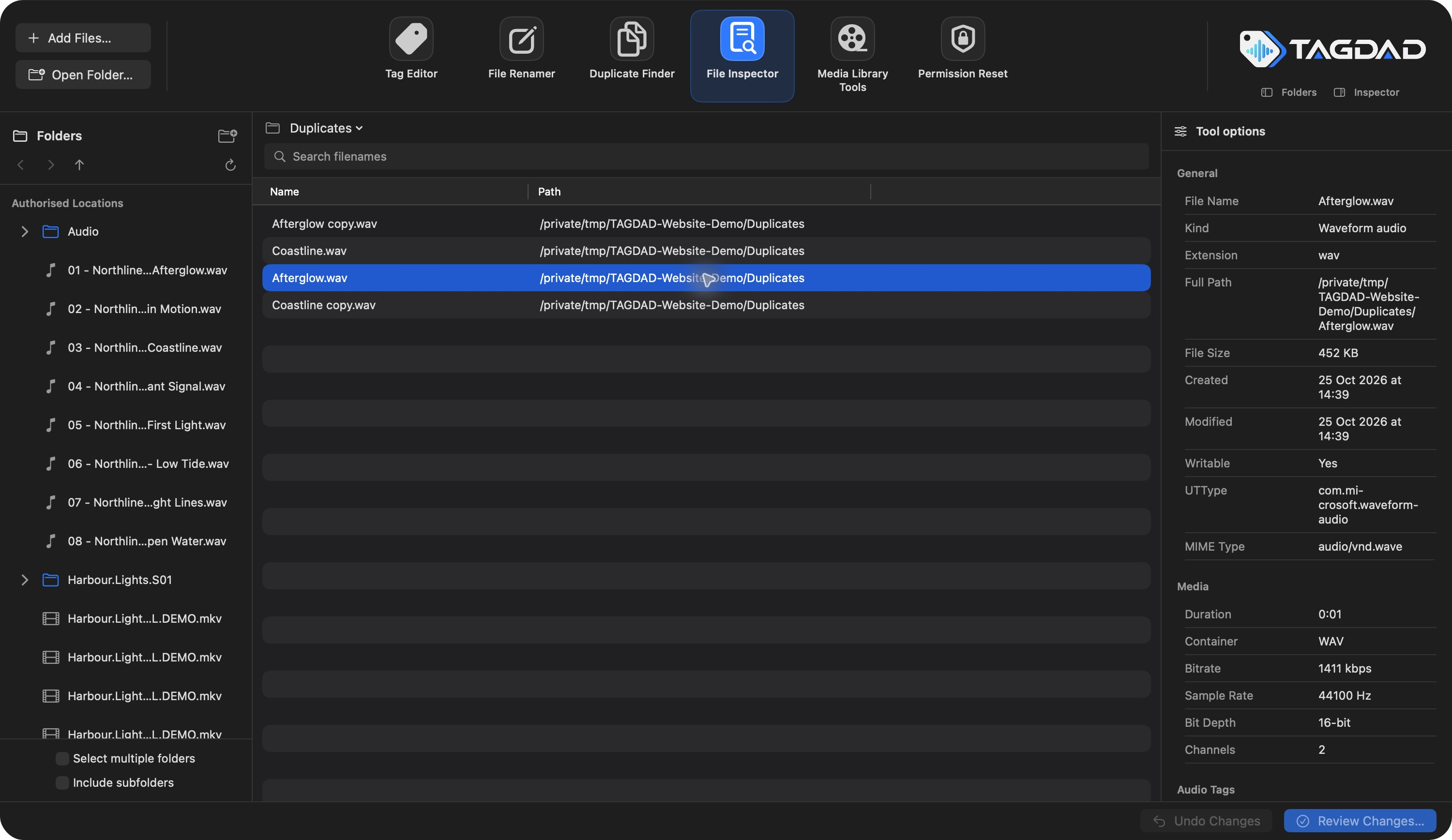
Use the inspector to investigate a file before changing it. Missing information does not necessarily mean the file is damaged; some formats do not contain the requested property or do not expose it through the available metadata reader.
08. Permission Reset.
Inspect file ownership, permissions and lock state before choosing a repair preset. Review the proposed changes before applying them.
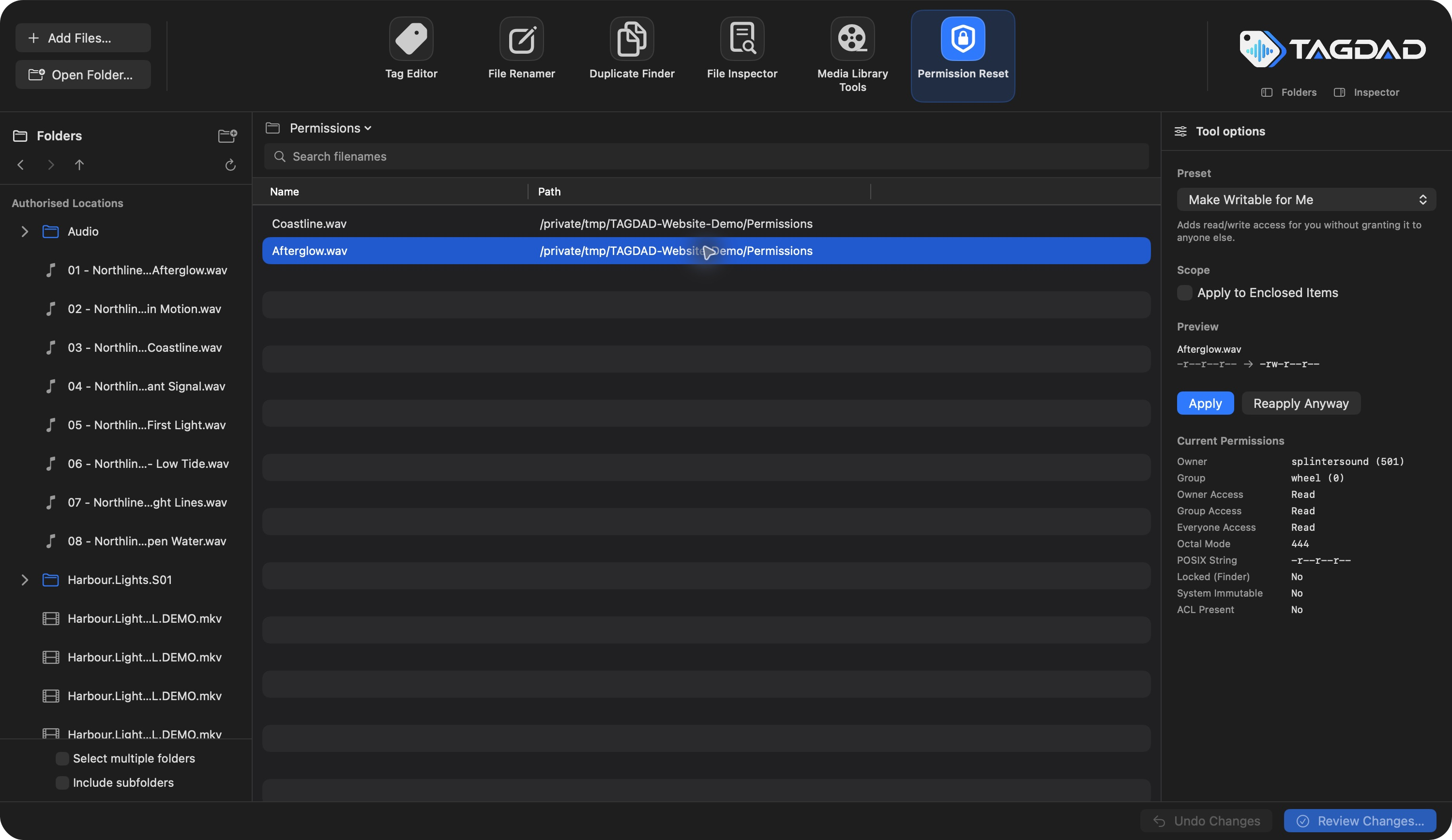
- Make Writable for Me adds read/write access for your account.
- Reset to Standard File Permissions uses ordinary non-executable file permissions.
- Reset to Standard Folder Permissions uses ordinary folder permissions.
- Unlock File clears a user lock where allowed.
- Remove Problematic User ACL Entries targets supported deny entries for your account.
TAGDAD does not request administrator access, change ownership or bypass macOS protections. If another user owns a file, a drive is read-only or access is restricted by the system, resolve that through the appropriate macOS or storage controls.
09. Review, apply and undo.
Use the bottom action bar to review staged tag and filename changes. Check old and new values, the selected scope and any reported conflicts. Other operations, including parent-folder renaming and permissions, have their own review and confirmation.
Undo discards staged edits or reverses the last supported operation when its recovery checks allow it. It is not a permanent history or a replacement for backups. Avoid moving or changing files in another app between applying a change and attempting to undo it.
Quitting with changes
If there are unapplied changes, Quit offers Keep Editing, Quit Without Applying or Apply Changes & Quit. Quitting without applying leaves those proposed changes off disk. Let an active file write finish before closing the app.
TAGDAD checks for conflicts and changed source files. If it reports that a file changed, refresh and review again instead of applying an old preview.
10. Trial and Full Unlock.
Choose TAGDAD → Trial & Full Unlock…. The App Store edition displays the free trial and your local Full Unlock price.
- Activate Start 14-day Trial — Free and complete Apple’s confirmation.
- The trial ends 14 days after its original activation. Restoring or reinstalling does not start a new trial.
- After expiry, choose the optional one-time Full Unlock to keep applying new edits and organisation changes.
Browsing, inspection, duplicate finding, previews and Undo remain available for free. The trial never renews and never charges you automatically. Your existing files and changes remain yours.
Restore a purchase
Use Restore Purchases while signed in with the same Apple Account. Apple may ask you to authenticate. Wait for TAGDAD’s restore result. Full Unlock can also be checked from the same menu after reopening the app.
If Apple is waiting for purchase approval, access is granted only after a verified transaction arrives. Once Apple confirms approval, use Restore Purchases if access has not appeared.
11. Keyboard shortcuts.
| Shortcut | Action |
|---|---|
| ⌘ O | Add files |
| ⇧ ⌘ O | Open folders |
| ⌘ S | Review/save staged changes through confirmation |
| ⌘ Z | Undo changes, where available |
| ⌘ F | Focus the workspace filter |
| ⌘ Q | Quit, with a prompt for unapplied changes |
| Command-click a sidebar folder | Add or remove it from the selected folders |
12. When something needs a hand.
A folder is missing or won’t open
Choose Open Folder… and select it again. Check that removable drives are connected. The App Store edition needs an explicit grant to the relevant location; folder operations may need access to its parent.
The proposed name is wrong
Check the detection mode, title, year and season/episode pattern. Keep Conservative Detection on for ambiguous files. Leave uncertain files out of the operation until their preview is correct.
A purchase window seems stuck
Check for an Apple sign-in or confirmation window behind TAGDAD. Complete authentication directly in Apple’s dialog. You can cancel and retry; a cancelled purchase does not grant access. After Apple confirms a purchase, try Restore Purchases if necessary.
Need more help?
Contact TAGDAD support with your app version, macOS version, exact steps and error text. Do not send your password, purchase credentials or private media library.